Multiport Charger Power Sharing: Splits and Charging Pauses
An unexpected charging pause can interrupt your setup. Adding a device can change a multiport charger's available output and trigger renegotiation; check the exact port combination and whether charging resumes.
Quick check: use the occupied-port row
An unexpected charging pause can interrupt your setup. Adding a device can change a multiport charger’s available output and trigger renegotiation; check the exact port combination and whether charging resumes.
This guide explains multiport charger dynamic power allocation for a phone, laptop and small accessories. It covers connection changes and a four-port allocation matrix, using public documentation rather than hands-on testing. For the wider kit, start with Charging & Power.
Scroll horizontally to see all columns if needed.
| Input or item | Value or source to use | Why it matters |
|---|---|---|
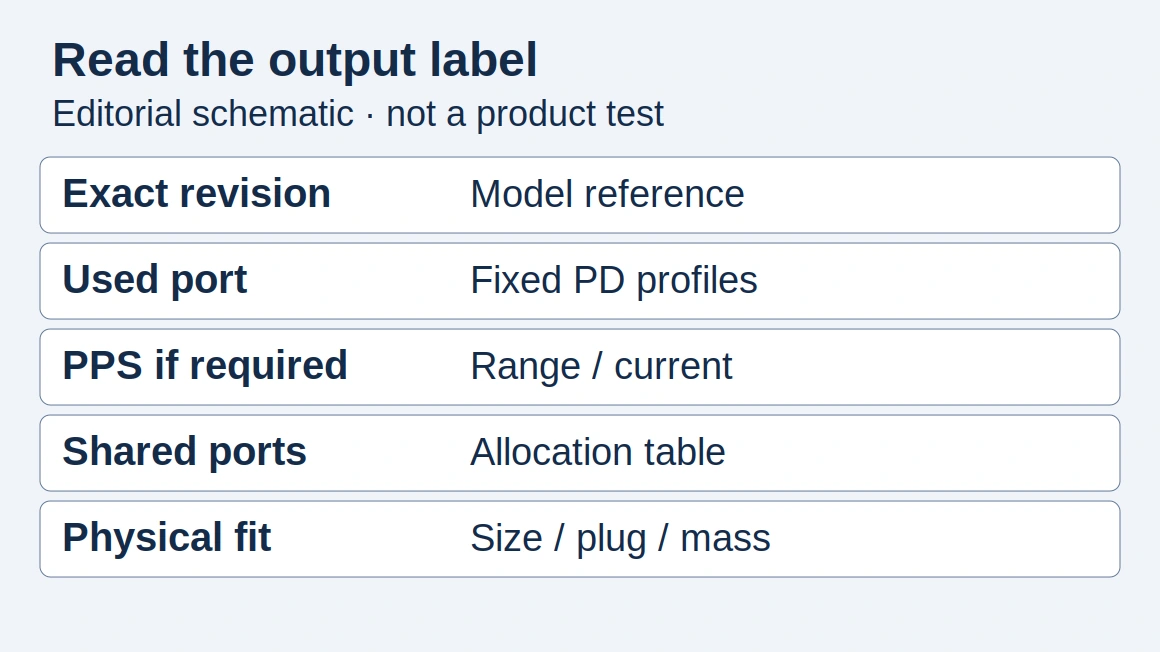
| Charger identity | Model and revision on your adapter and manual | Similar-looking products can have different tables |
| Main device’s port | Its printed port name | Port order can change the available output |
| All occupied ports | The matching row of the manufacturer’s chart | A single-port ceiling does not describe simultaneous use |
| Device charging mode | Device maker’s input requirements | Wattage alone does not establish compatibility |
| Cable capability | Cable documentation for this connection | A matching adapter does not remove the cable limit |
| Connection event | What you added or removed; whether charging resumed | Separates a transition from a persistent problem |
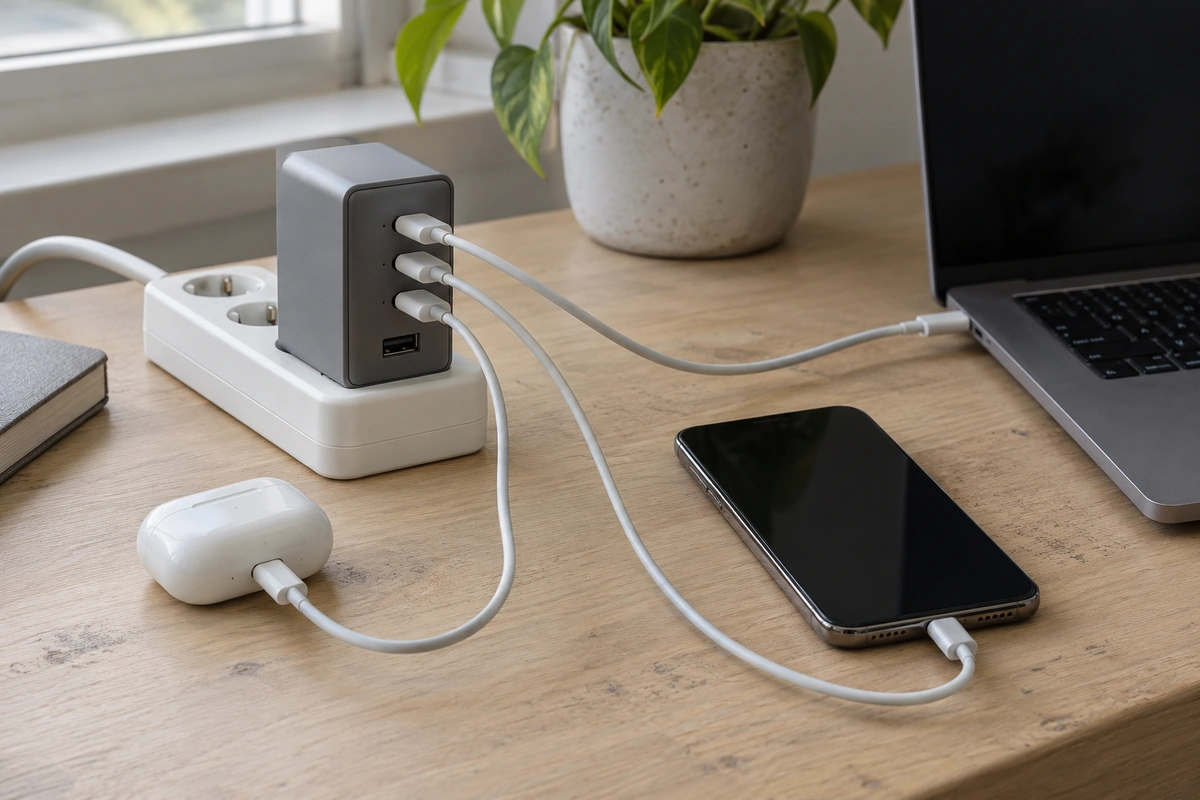
The opening image shows an example charging setup with generic equipment, not the manufacturer’s product or a recorded test.
Takeaway: Match your actual connections to a documented combination before interpreting a charging pause.
What dynamic allocation changes
Power sharing changes the output budget available to connected devices. It does not make the adapter’s headline wattage available at every port simultaneously.
Keep three different quantities separate: the adapter’s total output ceiling, each port’s ceiling for the occupied combination, and the power a device actually uses. A chart establishes the first two; it does not measure the third. Use the specification comparison guide to record those fields separately.
A USB-C PD port also offers particular voltage/current modes. A power contract is the operating arrangement agreed by the power source and receiving device. Our USB Power Delivery explainer introduces that agreement. After the other ports change, the available offer may change too; USB-IF’s specification recognizes capability updates associated with sharing power with another port.
“Dynamic,” “intelligent” and “smart” on a product page are insufficient descriptions of the allocation policy. Ask what happens with your occupied ports, whether priority is fixed or configurable, and whether the maker documents changes when another device’s demand falls. Do not infer that unused capacity is automatically transferred to your laptop from those words alone.
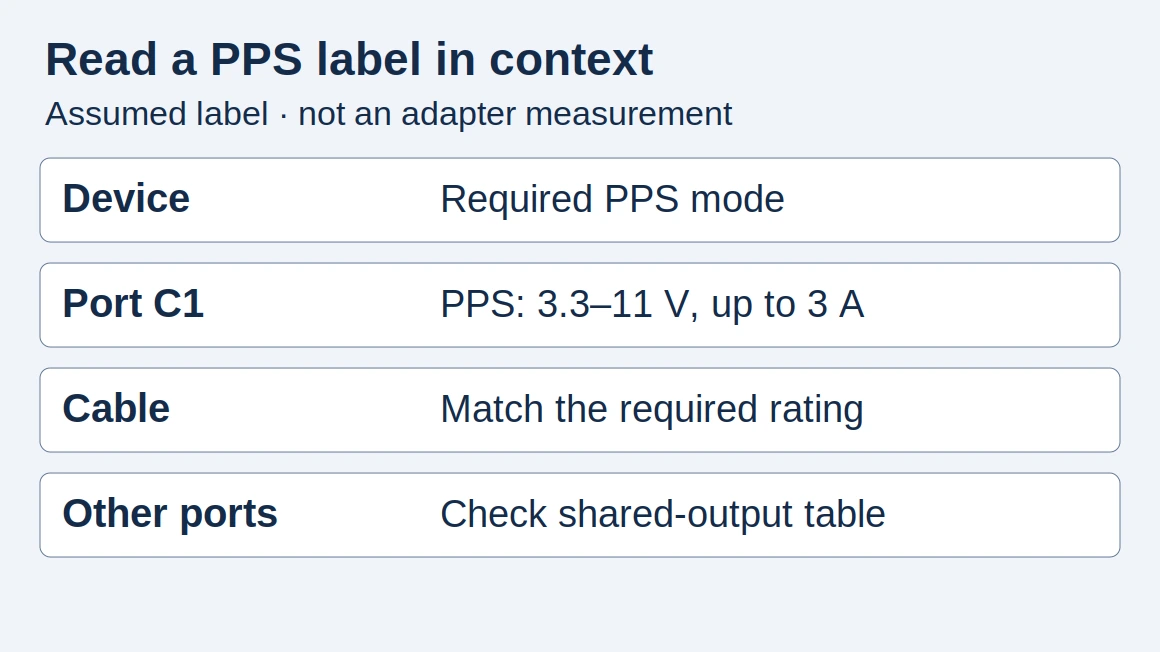
If the phone needs Programmable Power Supply, check the relevant PPS range as well as its port’s wattage. A smaller shared budget and an unsupported charging mode are different problems.
Common mistake: Dividing the total by the number of ports. Equal division is an arithmetic assumption, not evidence of the adapter’s policy.
Takeaway: Read the combination, the port’s supported modes and the device’s requirements as separate checks.
Why plugging in another device can pause charging
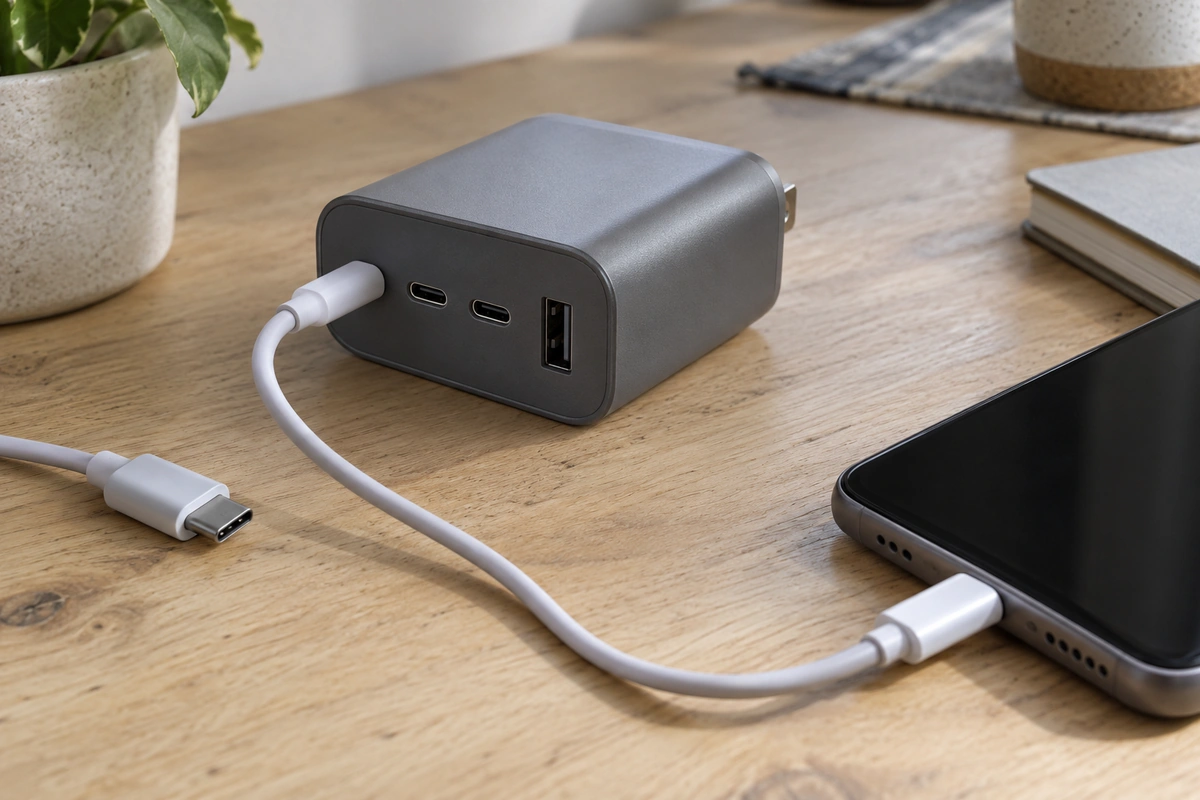
A brief pause can accompany redistribution, but a charging icon alone cannot identify the underlying protocol event. Nothing’s official support explanation says that multiport allocation may briefly interrupt charging before it resumes.
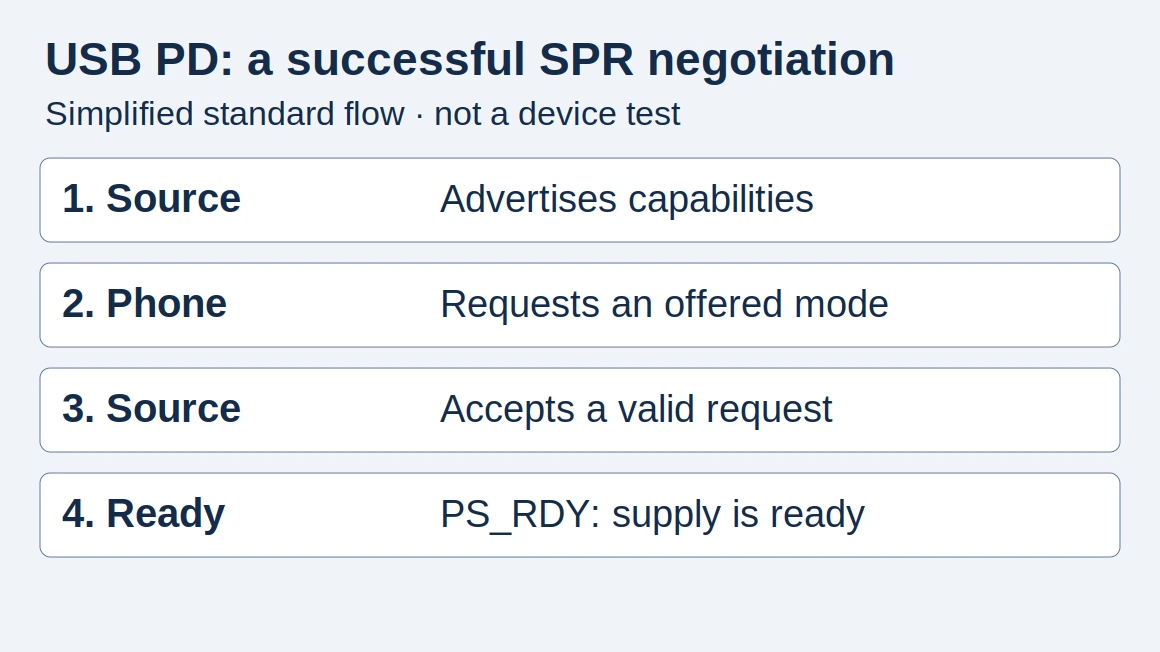
For a successful Standard Power Range (SPR) negotiation, the simplified message sequence is Source_Capabilities → Request → Accept → PS_RDY. The charger offers modes, the device requests one, and the charger signals acceptance and power readiness. USB-IF describes this in PD R3.2 V1.2, sections 7.9.1–7.9.2 and 6.3.6; the sequence omits rejection and waiting branches.
Do not use “reset” as a name for every charging change:
Scroll horizontally to see all columns if needed.
| Event | What the USB-IF specification distinguishes | What a screen observation establishes |
|---|---|---|
| Capability update and negotiation | A changed offer and a requested operating arrangement | The indication may change; it does not reveal the messages |
| Soft Reset | Communication-protocol reset without changing power-supply operation | A charging icon cannot confirm a Soft Reset |
| Hard Reset | Power supplies and protocol return to default states; the bus voltage drops during the reset | A visible pause cannot by itself confirm a Hard Reset |
These distinctions come from sections 7.1.1 and 7.1.3. Redistributing a budget is not a universal requirement to perform a Hard Reset. Identifying the actual event requires suitable protocol evidence, beyond the observation checklist below.
There is also a separate outcome: the device may not continue charging on the reduced allocation. Nothing’s second support article warns of this for some high-power devices. A pause that recovers and insufficient shared output should therefore lead to different checks.
Takeaway: First record whether charging resumes; do not diagnose a protocol reset from the icon alone.
Read a four-port allocation matrix
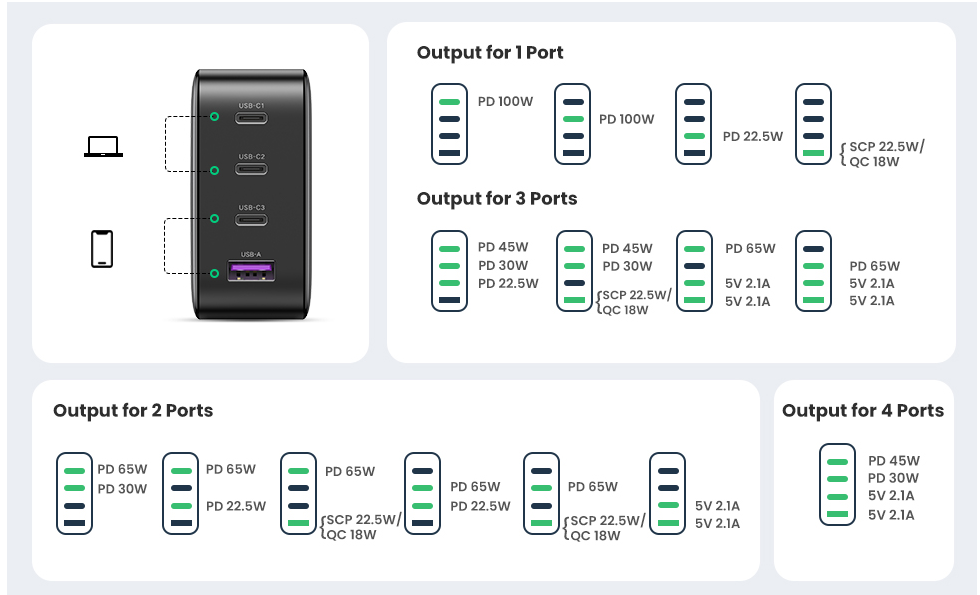
The useful row is the one for your exact occupied ports. A four-port charger can have different ceilings for different pairs, including pairs that use the same number of sockets.
The following is an archived manufacturer-chart example, not a recommendation or our test. It transcribes the UGREEN diagram credited to the manufacturer in iDownloadBlog’s July 12, 2022 review. It describes that review’s Nexode 100W three-USB-C/one-USB-A version, not every later product with the same name. Match your own model and manual before using these entries.
C1, C2 and C3 are its USB-C ports; A is its USB-A port. Values are the diagram’s advertised output labels, not measured device draw. A dash means unused. SCP and QC identify the distinct protocols named for the USB-A output; they are not USB-C PD modes.
Scroll horizontally to see all columns if needed.
| Occupied ports | C1 | C2 | C3 | A |
|---|---|---|---|---|
| C1 | PD 100W | — | — | — |
| C2 | — | PD 100W | — | — |
| C3 | — | — | PD 22.5W | — |
| A | — | — | — | SCP 22.5W / QC 18W |
| C1 + C2 | PD 65W | PD 30W | — | — |
| C1 + C3 | PD 65W | — | PD 22.5W | — |
| C1 + A | PD 65W | — | — | SCP 22.5W / QC 18W |
| C2 + C3 | — | PD 65W | PD 22.5W | — |
| C2 + A | — | PD 65W | — | SCP 22.5W / QC 18W |
| C3 + A | — | — | 5 V, 2.1 A* | 5 V, 2.1 A* |
| C1 + C2 + C3 | PD 45W | PD 30W | PD 22.5W | — |
| C1 + C2 + A | PD 45W | PD 30W | — | SCP 22.5W / QC 18W |
| C1 + C3 + A | PD 65W | — | 5 V, 2.1 A* | 5 V, 2.1 A* |
| C2 + C3 + A | — | PD 65W | 5 V, 2.1 A* | 5 V, 2.1 A* |
| C1 + C2 + C3 + A | PD 45W | PD 30W | 5 V, 2.1 A* | 5 V, 2.1 A* |
*The archived diagram repeats the 5 V, 2.1 A label beside C3 and A when both are occupied. It does not clearly state whether that current is independently available at each port or shared by the pair. Keep that question open; do not add those entries together to claim a combined output. Ask the maker for the corresponding manual’s shared-group limit.
Before assigning devices, identify the port intended for the main load. Then read the row with every accessory attached. If the main device’s documented requirement is incompatible with that row, try a documented alternative combination or a separate suitable adapter. Do not rely on a single-port result to decide a shared setup.
Use the PPS compatibility pairing record when phone charging modes are the unresolved part. For the wider choice of adapter and cables, the GaN and PD buying guide provides the surrounding checks.
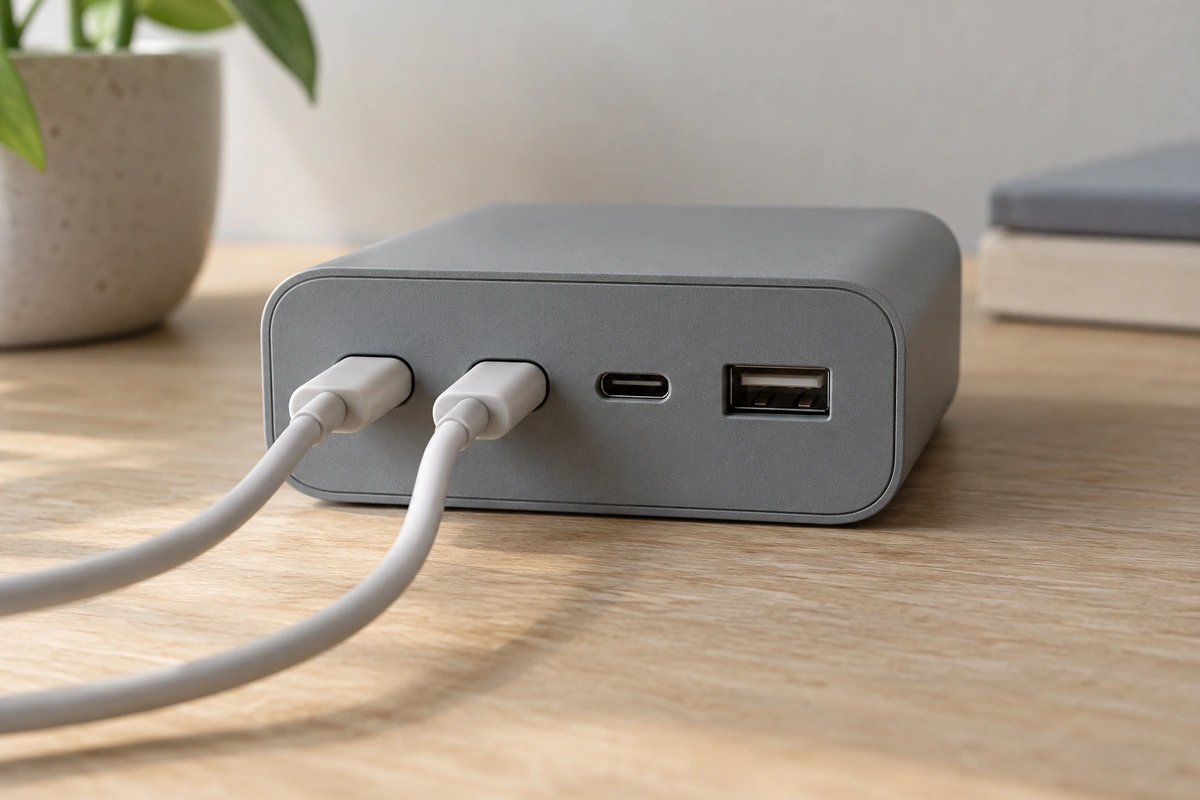
Common mistake: Treating an unused port’s maximum as power reserved for that socket, or assuming it is fully available elsewhere. The relevant combination table or documented allocation policy must answer that question.
Takeaway: Choose the port arrangement from the model’s table before deciding that the total rating is sufficient.
Check your own setup without guessing a restart time
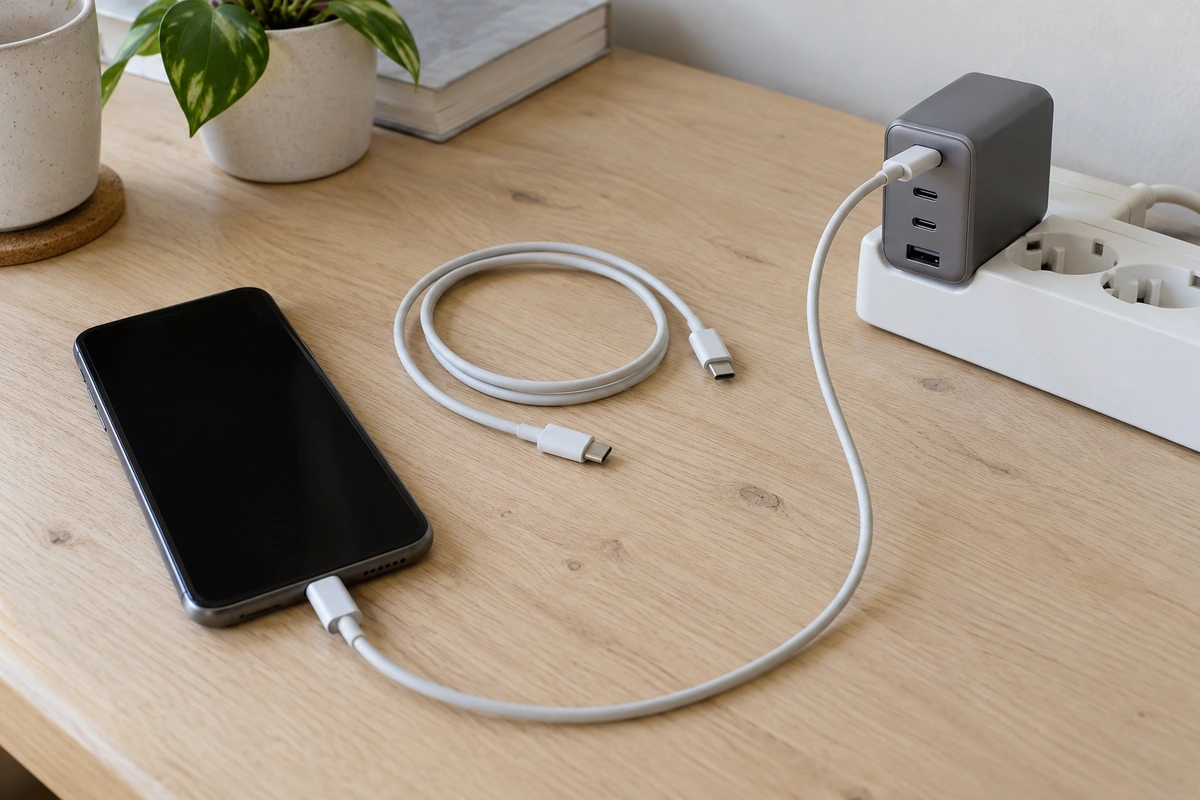
Observe one connection change at a time, keeping the main device on the same port. This is an editorial functional-check suggestion, not an electrical safety test or proof of the charger’s internal design.
- Save the matching documentation. Record model/revision, port names, the combination row and device input requirements. For the role of GaN versus finished-product specifications, use the GaN charger guide.
- Start with the main device alone. Note whether it charges and the displayed charging mode. Record its battery state and activity so a later comparison has context.
- Add the next device. Note the newly occupied port and whether the first device’s indication changes, recovers or remains off. Record an observed duration if you can measure it; this guide supplies no universal timeout.
- Remove that connection. Record whether the first device returns to its previous indication. Follow the manual if it describes a recovery procedure.
- Investigate persistent failure separately. If the problem also occurs with the main device alone, the sharing row is not sufficient to explain it. The manufacturer’s troubleshooting guidance suggests checking another suitable cable, device or socket. Change one item at a time and retain the result for product support.
Scroll horizontally to see all columns if needed.
| Observation field | Your entry |
|---|---|
| Adapter model/revision and manual URL | ___ |
| Main device, software, battery state and activity | ___ |
| Main port and cable identification | ___ |
| Added device and its port; insertion or removal | ___ |
| Published allocation before and after | ___ |
| Displayed indication before, during and after | ___ |
| Observed interruption and whether charging resumed | ___ |
| Single-device or replacement-cable comparison | ___ |
A phone’s charging message is a useful observation, but it does not establish input watts or battery charging power. If you need to compare actual results, write down the measuring method and its limits. Do not turn a change in the icon into a performance claim.
Takeaway: A reproducible before/add/remove record is more useful to product support than an assumed reset duration.
When this does not apply
This guide does not establish that any particular interruption is harmless, or that a charger supplies uninterrupted power. Use the exact device and adapter documentation for that decision.
- Another model or revision: the example matrix is not a standard for every four-port adapter, including products carrying the same headline wattage.
- USB-A or another charging protocol: the simplified USB-C SPR message sequence is not a description of every socket. Do not apply it to USB-A solely because it shares the housing.
- Extended Power Range (EPR) arrangements: this is the higher-power PD range; its complete negotiation and cable checks need the USB PD EPR guide, rather than the abbreviated SPR sequence above.
- Persistent cycling, failure to recover or a device reboot: the manufacturer’s description of a brief redistribution pause does not diagnose these symptoms. Keep the single-device comparison and contact the product’s support channel.
- Loads that cannot tolerate a power interruption: require documented behavior appropriate to that load. A “smart sharing” label and a successful phone-charging observation are insufficient evidence.
Takeaway: Stop applying the brief-pause explanation when the symptoms or connection fall outside its documented scope.
FAQ
Can 100W charge a laptop?
Check the laptop’s documented input mode, the cable and the occupied-port row. The headline rating alone cannot answer it. A port’s shared ceiling may differ from its standalone ceiling; this guide does not establish a charging speed for a particular laptop.
What devices need a 100W charger?
Start with each device’s input specification and your simultaneous-use arrangement. A phone, tablet or accessory does not acquire that requirement because the adapter has it printed on the casing. Keep the main load and the other occupied ports in the same comparison record.
What happens if I plug my phone into a 100W charger?
In a compatible PD setup, the phone requests an offered operating mode; the charger does not simply force its headline power into the phone. Check the phone’s supported mode, selected port and cable, including the shared-use condition.
Can any USB-C cable charge 100W?
No. For a compatible SPR 100W arrangement at 20 V and 5 A, the cable needs the corresponding 5 A capability; connector shape is insufficient. USB-IF’s cable-current requirements distinguish these limits. Use the cable’s documentation rather than appearance to identify its capability.
Is there a USB-C splitter that supports power delivery?
For a particular splitter or hub, check its maker’s documented input, outputs and simultaneous-use behavior. The four-port adapter matrix here cannot validate a separate splitter. Treat an added hub as another device with its own requirements, rather than copying the adapter’s ceiling to every downstream connection.
Why does my computer charger keep disconnecting and reconnecting?
Distinguish a single event after another port changes from repeated cycling with the connections unchanged. Compare the main device alone and record a suitable replacement-cable result, following the manual. Persistent cycling calls for product-specific troubleshooting; the phrase “power redistribution” does not establish its cause.
Takeaway: Resolve the device, cable and connection requirements together before relying on the adapter’s headline wattage.
Related reading
Use the next guide for the unresolved part of your connection:
- USB-C PD explained — identify what the charger offers and the device requests.
- 100 W shared-gang arithmetic — apply the 7.5 W hold and the PDO-maximum reservation to a 100 W total.
- PPS charging — check an adjustable charging mode separately from total wattage.
- USB-C car chargers for laptops — match 12 V or 24 V vehicle socket limits, buck-boost port profiles, and shared output when charging a laptop and phone in a car.
- Power banks — handle portable-source capacity and recharge questions, which this wall-adapter guide does not address.
Takeaway: Keep the allocation record, then follow the guide for the remaining compatibility question.
How this guide was prepared
Desk research with AI assistance, using USB-IF's published protocol and attributed manufacturer documentation. The port matrix reproduces documented output ceilings, not measured charging results or a product recommendation. The observation checklist is an editorial suggestion. Images depict example setups with generic equipment.
Sources and further reading
- USB Power Delivery R3.2 V1.2: sections 3.3, 7.1.1, 7.1.3 and 7.9; power negotiation and resets — USB-IF. Accessed .
- Why does the charging port stop working and restart when I start using another port? — Nothing support. Accessed .
- One port is charging and the other one is plugged in: why does the first stop charging? — Nothing support. Accessed .
- Archived Nexode 100W allocation diagram credited to UGREEN in a July 2022 review — UGREEN diagram, reproduced by iDownloadBlog. Accessed .
- Nexode 100W four-port charger: connection troubleshooting — UGREEN. Accessed .
Found an error? See our corrections policy and research methodology.