MDM Lock Signs on a Phone: Remote Management Prompts, Supervision Profiles & Reset Verification
Inspect supervision notices and installed profiles in Settings, then run a factory reset and network activation check to catch dormant enterprise enrollment before acceptance.
For an MDM lock check on a used or refurbished phone, inspect the device settings and run a factory-reset activation check before you accept or reject the handset. Supervision gives schools and businesses greater control over the devices that they own. Supervision generally denotes that the device is owned by the organization, which provides additional control over its configuration and restrictions.
Separate pre-reset menu observations from post-reset network provisioning checks in your receiving record. Use the inspection tables below during sample intake, and pair this check with our wholesale sourcing guide and smartphone buying guides.
What signs in Settings show supervision or management profiles?
On a supervised iPhone or iPad, Settings displays text below the Search field and above the Apple Account area stating that the iPhone or iPad is supervised. The supervision text in Settings on a supervised iPhone or iPad states that the organization can monitor internet traffic and locate the device. With supervision, an administrator can apply extra restrictions like turning off AirDrop or preventing access to the App Store.
On iPhone, installed configuration profiles are visible in Settings > General > VPN & Device Management. To check if an Android device has a Work Profile, go to Settings > Passwords and accounts and look for a work tab with Work Profile settings listed underneath.
| Inspection area | Documented platform behavior | Action for your receiving record |
|---|---|---|
| Main Settings supervision header | The Supervision message is found at the top of the main Settings page. | Check the top of Settings and record any displayed organization notice. |
| Lock Screen ownership message | An organization has the option to display a custom ownership message on the Lock Screen using the Shared Device Configuration profile payload. | Inspect the Lock Screen before unlocking the sample handset. |
| iPhone or iPad profile detail view | To check installed profiles on iPhone or iPad, tap Settings, then tap General, then tap VPN & Device Management, and tap an installed profile to see what type of changes are made. | Inspect the profile payload details before accepting the handset. |
| Android Work Profile separation | On Android 5 or later devices, an Android Work Profile can be set up to separate work apps and data from personal apps and data. | Distinguish a work container from full-device enterprise management. |
| Android Work Profile app badges | On an Android Work Profile device, work apps are marked with a briefcase icon to distinguish them from personal apps. | Scan the app drawer for briefcase-marked icons before erasing. |
Record the exact screen wording and menu path before changing any setting on the sample handset.
How does device supervision differ from manual profile or BYOD enrollment?
By default, an Apple device isn’t supervised, and supervision can only be turned on when setting up a new device. If an Apple device isn’t supervised now, the administrator needs to completely erase the device to set up supervision.
An iPhone with iOS 13 or later is supervised automatically when enrolled using Automated Device Enrollment. An iPad with iPadOS 13.1 or later is supervised automatically when enrolled using Automated Device Enrollment. Organizations can supervise iPhone, iPad, and Apple TV devices manually by using Apple Configurator for Mac, which erases the device so all data is lost.
Device Enrollment allows users to manually enroll organizational-owned and already deployed devices into a device management service. Account-driven User Enrollment is designed for BYOD deployments where the user, not the organization, owns the device. With account-driven User Enrollment, IT teams can manage only an organization’s accounts, settings, and information provisioned with a device management service, never a user’s personal account.
| Apple enrollment method | Supervision behavior upon enrollment | Inspection implication |
|---|---|---|
| Account-driven User Enrollment | Account-driven User Enrollment (minimum iOS 15, iPadOS 15) does not supervise the device upon enrollment. | Treat as a user-owned BYOD enrollment path. |
| Account-driven Device Enrollment | Account-driven Device Enrollment (minimum iOS 17, iPadOS 17) does not supervise iPhone, iPad, or Apple Vision Pro upon enrollment. | Verify profile removal options in device settings. |
| Profile-based Device Enrollment | Profile-based Device Enrollment (minimum iOS 4, iPadOS 13.1) does not supervise iPhone, iPad, or Apple TV upon enrollment. | Confirm whether the installed profile is user-removable. |
Keep these enrollment categories separate so you do not confuse a removable profile with organization-locked supervision.
When can a management profile be removed in Settings?
On an iPhone, if you delete a configuration profile, all of the settings, apps, and data associated with the profile are also deleted. Under Device Enrollment, when a user removes an enrollment profile, all configuration profiles, their settings, and managed apps based on that enrollment profile are removed with it.
With Automated Device Enrollment, organizations have the option to prevent the user from removing the device management service’s enrollment profile. When the Prevent unenrollment option is configured on iOS 7 or later and iPadOS 7 or later, a supervised device can’t be unenrolled by the user. In Microsoft Intune automated device enrollment for iOS/iPadOS, enabling locked enrollment hides the button in the Settings app that lets users remove a management profile so users won’t be able to unenroll their device.
Check the provisional release window on manually added Apple devices
Using Apple Configurator, organizations can add Apple devices to Apple School Manager or Apple Business even if they weren’t purchased directly from Apple. When a device is added to Apple School Manager or Apple Business using Apple Configurator, the user has a 30-day provisional period to release the device from Apple School Manager or Apple Business, supervision, and the device management service. In Microsoft Intune, if locked enrollment is enabled on iOS/iPadOS devices manually added to ADE (not originally purchased through Apple Business), users can see the remove management button for the first 30 days after activation; afterward it is hidden.
Note whether the management profile displays a removal button or hides unenrollment before you classify the unit.
Why must you run a factory reset to detect hidden MDM enrollment?
Automated Device Enrollment lets organizations configure and manage Apple devices from the moment someone removes a device from its box. After a configuration is applied to a device in the Android zero-touch enrollment portal, the device automatically provisions itself on first boot, or next factory reset.
A handset already at the Home Screen can miss a latent Automated Device Enrollment or Android zero-touch assignment until the device is erased and reconnected to a network. Agree opening and reset permissions in advance using the mobile phone quality-control checklist.
To erase an iPhone or iPad from Settings, tap General, then tap Transfer or Reset [device], and tap Erase All Content and Settings. The Hold device in Setup Assistant option (supported on iOS 9 and iPadOS 9 or later) holds the device in the Setup Assistant so the device management service can apply critical configurations or install critical apps. The Configuration web URL option (supported on iOS 13 and iPadOS 13 or later) specifies a URL that the device loads in the Setup Assistant for authentication, custom branding, or consent text.
When using Automated Device Enrollment, if a device doesn’t meet the minimum operating system version that the service expects, the operating system guides the user through a software update or upgrade before they can continue with Setup Assistant. In Microsoft Intune ADE for iOS/iPadOS, the configured Department appears when users tap About Configuration during activation, and Department Phone appears when users tap Need Help.
What happens during Android zero-touch provisioning?
On first boot, Android zero-touch enrollment devices check to see if they’ve been assigned an enterprise configuration. If assigned an enterprise configuration on first boot, an Android zero-touch device initiates the fully managed device provisioning method and downloads the correct device policy controller app. Zero-touch shows the configured company name during device provisioning and the support email address before device provisioning.
Android zero-touch enrollment requires a mobile or tablet device running Android Pie (9.0) or later, a compatible device running Android Oreo (8.0), or a Pixel phone with Android Nougat (7.0), purchased from a reseller partner. An Android device must be compatible with Google Mobile Services (GMS) and Google Play services must be enabled at all times for zero-touch enrollment to function correctly.
How do Managed Lost Mode, remote wipe, and organizational release work?
The only time an administrator can view the location of a supervised Apple device is if they put the device into Managed Lost Mode. When an administrator puts a supervised Apple device into Managed Lost Mode, the device locks and displays a message on the Lock Screen. An organization can’t track the location of a supervised Apple device without locking it and showing a notification.
On an Apple device, erasing (or wiping) obliterates all the keys in effaceable storage and renders all user data cryptographically inaccessible. Remote wipe using Erase All Content and Settings isnʼt possible for accounts using User Enrollment. For Android Enterprise fully managed Samsung devices in Microsoft Intune, if Factory Reset is blocked and a Wipe action is initiated, the device loses contact with Intune and is unable to complete the factory reset.
Organizations can deregister devices from zero-touch enrollment when transferring ownership by finding the device using its IMEI or serial number and clicking Remove.
When a handset displays an organization prompt or locked management profile, pause acceptance and require portal release or deregistration confirmation from the seller. Keep lost-or-stolen and carrier checks in separate fields using our blacklisted IMEI status check and carrier unlock comparison.
What should your MDM receiving inspection record include?
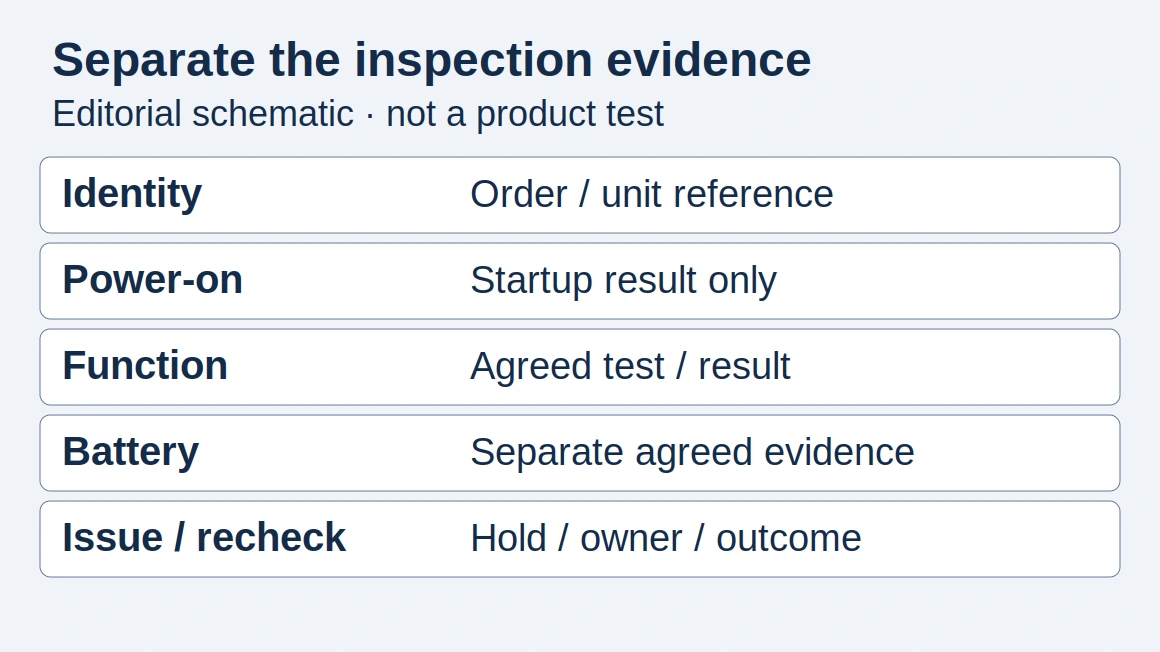
Copy the table below into your private receiving file for each inspected sample. Keep screenshots or photographs of setup screens alongside the handset reference.
| Checklist field | What to record during inspection |
|---|---|
| Handset and order reference | Order reference; physical device identifier; operating system family |
| Pre-reset Settings check | Main Settings supervision notice; Lock Screen ownership message; work app badges |
| Profile and removal check | Installed profile entry; Work tab presence; whether a remove option is visible or hidden |
| Factory reset execution | Written reset permission; local erase path completed; any blocked-reset observation |
| Post-reset network activation | Setup Assistant or zero-touch provisioning prompt; displayed company, department, email, or phone details |
| Disposition and release evidence | Accept, hold, or return decision; seller correspondence and portal release confirmation |
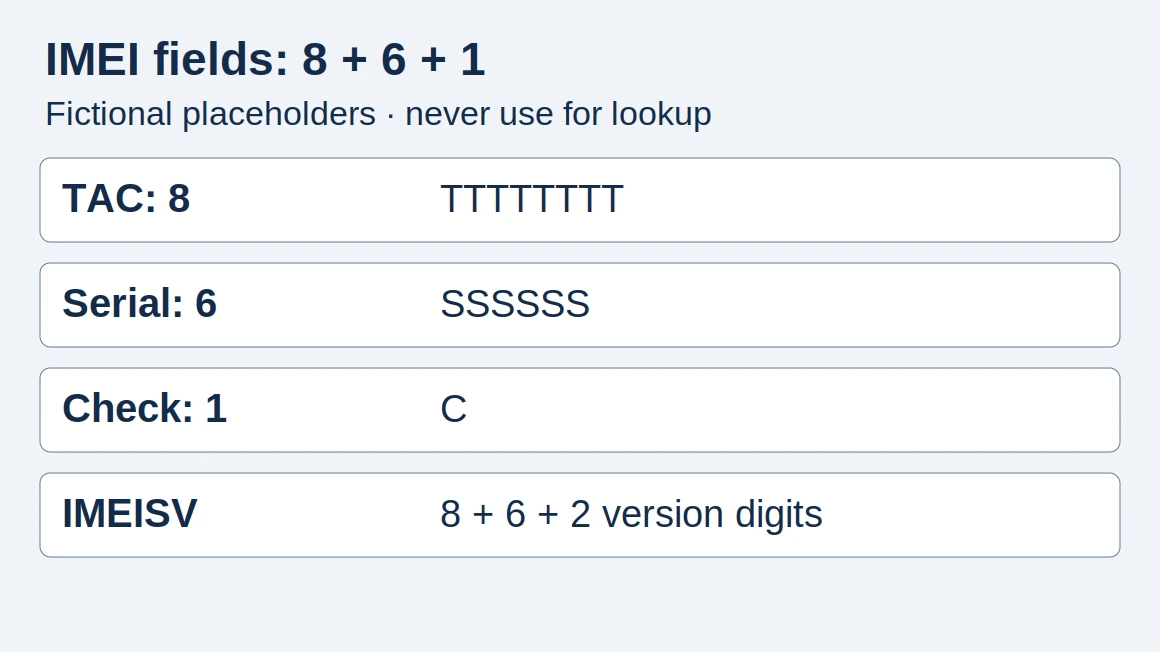
Reconcile the physical identifier before closing the inspection record using our IMEI verification guide, and return to the wholesale buyer guide to align your order terms and remedies.
Sources and further reading
- About supervision on iPhone and iPad — Apple Support. Accessed .
- About device supervision — Apple Platform Deployment. Accessed .
- Install or remove configuration profiles on iPhone — Apple iPhone User Guide. Accessed .
- What is a work profile? — Google Android Enterprise Help. Accessed .
- Device Enrollment and device management — Apple Platform Deployment. Accessed .
- User Enrollment and device management — Apple Platform Deployment. Accessed .
- Enrollment methods for Apple devices — Apple Platform Deployment. Accessed .
- Automated Device Enrollment and device management — Apple Platform Deployment. Accessed .
- Set up automated device enrollment (ADE) for iOS/iPadOS — Microsoft Learn. Accessed .
- Add Apple devices to Apple School Manager or Apple Business Manager — Apple Platform Deployment. Accessed .
- Zero-touch enrollment for IT admins — Google Android Enterprise Help. Accessed .
- What to do before you sell, give away, or trade in your iPhone or iPad — Apple Support. Accessed .
- Erase devices — Apple Platform Deployment. Accessed .
- Retire or wipe devices using Microsoft Intune — Microsoft Learn. Accessed .
Found an error? See our corrections policy and research methodology.