eSIM iPhone Transfer Limits: EID, Profiles, Carrier Rules and Model Checks
Check the phone, the plan and the transfer route before moving service. EID identifies the eSIM hardware; profile storage, active lines and carrier eligibility are separate checks.
An iPhone eSIM transfer succeeds when the destination phone and your line qualify for the carrier’s activation method. A visible EID identifies the eSIM hardware; it does not establish that a particular plan can move to that phone.
Check model eligibility before choosing a transfer method. Apple’s general guidance describes eight or more stored eSIM profiles, while Dual SIM provides two active lines and uses one cellular data network at a time. Supported iPhones purchased in mainland China have a separate two-profile storage limit. For a phone change, first identify the regional model, then check carrier support and preserve access to the account that authorizes the transfer. These distinctions follow Apple’s setup, Dual SIM and mainland-China guidance listed in Sources.
- Buying a phone: verify its A-model, sales region and carrier restriction.
- Moving a line: choose Quick Transfer or the carrier’s activation route.
- Deleting a profile: establish how that carrier will replace it first.
What does EID tell you about eSIM capacity?
EID is a 32-digit identifier for the eUICC, the hardware that holds eSIM profiles. GSMA’s eUICC Identity Scheme defines this identity separately from the phone’s service configuration. Keep these checks distinct:
Scroll horizontally to see all columns if needed.
| Check | What it tells you | How to use it |
|---|---|---|
| EID | Which eUICC is present | Provide it privately if the carrier requests it for activation |
| Stored profiles | Which eSIM profiles are saved on the phone | Check capacity before adding another plan |
| Active lines | Which lines are enabled for service | Select the lines you want available |
| Cellular data selection | Which line supplies mobile data | Set the intended data line in Cellular settings |
| Carrier eligibility | Whether the intended device and plan can activate | Confirm the exact model and line with the carrier |
Apple’s Set up eSIM on iPhone describes storage for eight or more eSIMs. That wording is not an exact eight-slot ceiling. Its Using Dual SIM with an eSIM guidance supports two active lines, with one cellular data network at a time. Saving more plans does not increase those active-line or data limits.
For the broader device identity record, use the smartphone model, region and status checklist.
Which iPhone model and region should you check?
Start with the actual A-number, then the purchase region. Apple’s general eSIM baseline is iPhone XS, XS Max, XR or later with a supporting provider, subject to regional model differences. A family name on a listing is insufficient for this check.
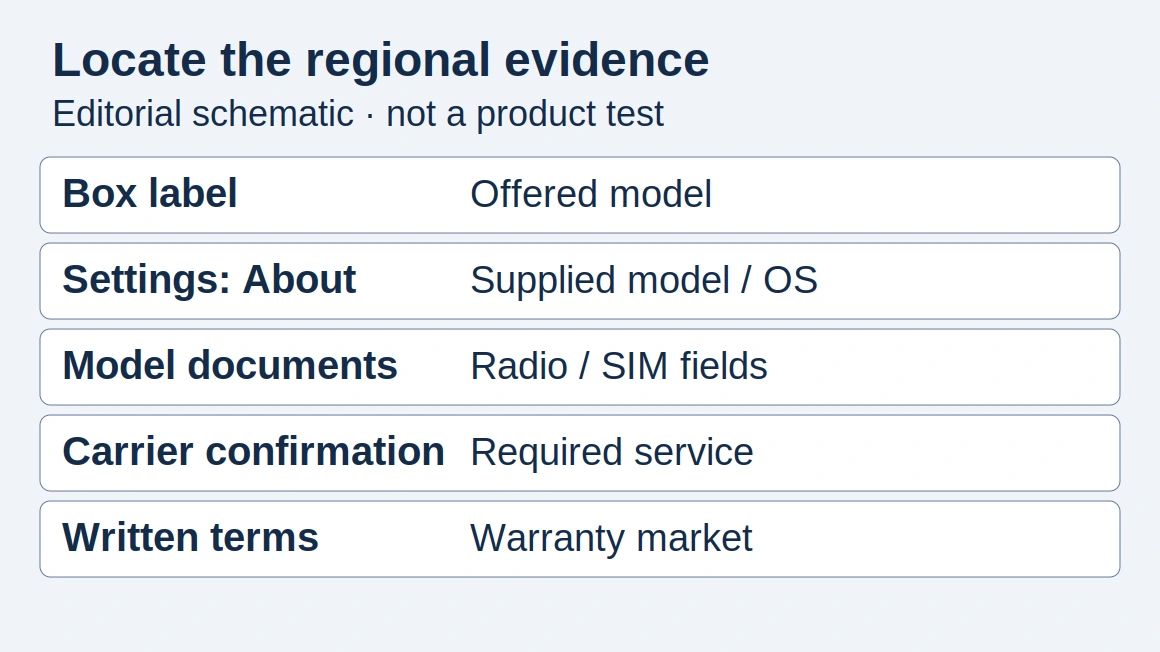
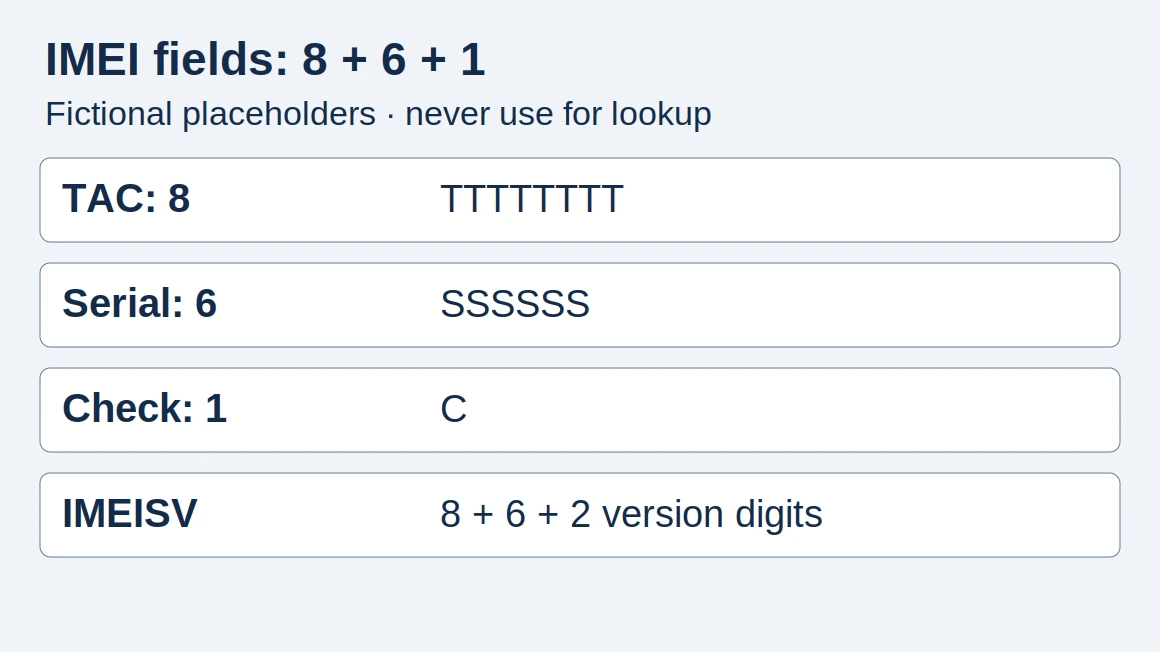
Open Settings → General → About. Tap the value beside Model Number to change the displayed part number to the model number. In the same About screen, scroll to locate EID and IMEI, following Apple’s device-identifier instructions. Keep complete identifiers in your private purchase or support record.
Storage and active-line capability groups
Use this table with Apple’s model and regional guidance as of October 2026. The mainland purchase rule takes precedence over the general storage description.
Scroll horizontally to see all columns if needed.
| Device group | Stored profiles | Active arrangement | Region check |
|---|---|---|---|
| eSIM-capable iPhone XS, XS Max, XR through iPhone 12 models | Apple’s general guidance describes eight or more | Physical nano-SIM plus eSIM for Dual SIM on supported variants | Verify the actual variant and SIM tray |
| eSIM-capable iPhone 13 models and later | General storage guidance applies outside the mainland exception below | Two eSIMs supported; physical SIM plus eSIM also possible where a tray is present | Confirm the A-model and target carrier |
| Supported iPhones purchased in mainland China | Up to two eSIM profiles | Up to two eSIMs; physical-SIM option depends on model | Use the mainland model list and activation procedure below |
Apple’s September 9, 2026 mainland-China guidance names these supported variants:
Scroll horizontally to see all columns if needed.
| Model | A-number | Activation arrangement |
|---|---|---|
| iPhone 18 Pro | A3715 | eSIM or physical nano-SIM |
| iPhone 18 Pro Max | A3718 | eSIM or physical nano-SIM |
| iPhone Duo | A3721 | eSIM only |
| iPhone 17e | A3635 | eSIM or physical nano-SIM |
| iPhone Air | A3518 | eSIM only |
Some Hong Kong and Macao variants use two physical nano-SIMs. Check their exact model documentation rather than applying a mainland or US configuration by name. The global-version phone guide explains the separate band, software and warranty checks.
When can you use eSIM Quick Transfer?
Use Quick Transfer when your carrier supports it and both phones meet Apple’s prerequisites. Its October 22, 2026 setup instructions require:
- The same Apple Account on both iPhones.
- The old iPhone unlocked with its device passcode.
- Nearby devices with Bluetooth enabled.
- iOS 18.4 or later on both phones.
Connect the new phone to Wi-Fi or a hotspot. Passcode access to the old phone and permission to use another carrier are separate checks.
After initial device setup, go to Settings → Cellular → Add eSIM or Set Up Cellular on the new phone. Select the line, or choose Transfer From Nearby iPhone, then approve the request on the old phone. Complete any carrier setup banner that appears.
Activation on the new phone deactivates the previous SIM. Keep the old device available until you have checked service on the replacement.
What if the carrier requires a new activation or profile?
Use the carrier’s supported activation or replacement process when Quick Transfer is unavailable. General eSIM support and Quick Transfer support are separate capabilities. “Re-provisioning” in a phone-change conversation means arranging the carrier-supported activation or replacement needed for the destination device.
Scroll horizontally to see all columns if needed.
| Situation | Next step |
|---|---|
| Quick Transfer is supported and both phones are available | Follow the nearby-iPhone transfer prompts |
| The carrier has assigned an eSIM to the new phone | Follow its Carrier Activation notification or setup prompt |
| The carrier supplies a QR code, app, link or manual details | Use that carrier’s instructions for the intended line and device |
| The old device is missing, or the profile was deleted | Establish the carrier’s account-verification and replacement route |
These activation alternatives are described in Apple’s Set up eSIM on iPhone. Before reusing an old activation code, ask the provider whether it remains valid for the destination phone. Also ask about any account-specific transfer limits or waiting periods before starting another move.
Verizon example: account access changes the route
Verizon’s Move your current Verizon mobile line to an eSIM device FAQs describes a My Verizon app route for standard monthly mobile customers. The person moving the line must be the Account Owner or Account Manager, with the app and an unlocked, eSIM-compatible phone. Connect the new device to Wi-Fi and follow the app’s transfer prompts.
For a single-line account, Verizon requires the old phone for authentication in this workflow. With multiple lines, another device on the account can authenticate. If that access is unavailable, arrange account recovery with Verizon before relying on the app route.
For a lost or deleted profile, Verizon directs users to My Verizon → Mobile → select the device → Activate or get SIM. That replacement path is useful to establish before removing a working profile. Apply these requirements to Verizon’s stated app workflow; check the relevant instructions for other carriers or account types.
What changes when the iPhone crosses regions?
An unlocked eSIM-capable phone still needs acceptance by the destination carrier for the intended plan. For another carrier, check Settings → General → About → Carrier Lock for No SIM Restrictions, then confirm model and plan support. Apple’s international-use guidance pairs the unlocking check with carrier and country compatibility checks.
For an imported or used phone, give the intended carrier the exact A-model and purchase region. Ask it to check the device identifiers through its normal compatibility process and state which activation method it supports for that line. Complete that step before accepting a phone whose only usable service option will be eSIM.
Mainland-China activation and travel
Apple’s mainland-China instructions require a supported mainland model and a carrier-store visit with an ID check to activate a mainland-carrier eSIM. Devices purchased outside mainland China cannot install eSIM profiles from mainland carriers.
On supported mainland-purchased iPhones, foreign-carrier eSIM installation takes place outside mainland China with Location Services enabled. The two-profile storage limit matters here: if both places are occupied, adding a travel profile requires deleting one. Restoring a deleted home eSIM on return requires a carrier-store visit. Plan that replacement before deleting the home profile.
What should you record before transferring or buying?
Keep a private record that connects the exact phone to the intended line and activation method. Work through these checks before moving service, and complete the last row after activation.
Scroll horizontally to see all columns if needed.
| Check | Record or action |
|---|---|
| Phone identity | A-model, purchase region and iOS version; reconcile handset and documentation |
| Device identifiers | Keep EID and IMEI privately for carrier checks |
| Carrier restriction | Record the Carrier Lock wording, particularly when changing carriers |
| Intended service | Name the carrier, account type, line and required voice/data services |
| Activation method | Confirm Quick Transfer, Carrier Activation or the carrier’s other supported route |
| Authentication | Keep access to the old phone or the carrier’s accepted alternative |
| Profile replacement | Establish how to restore a deleted profile, including any store visit |
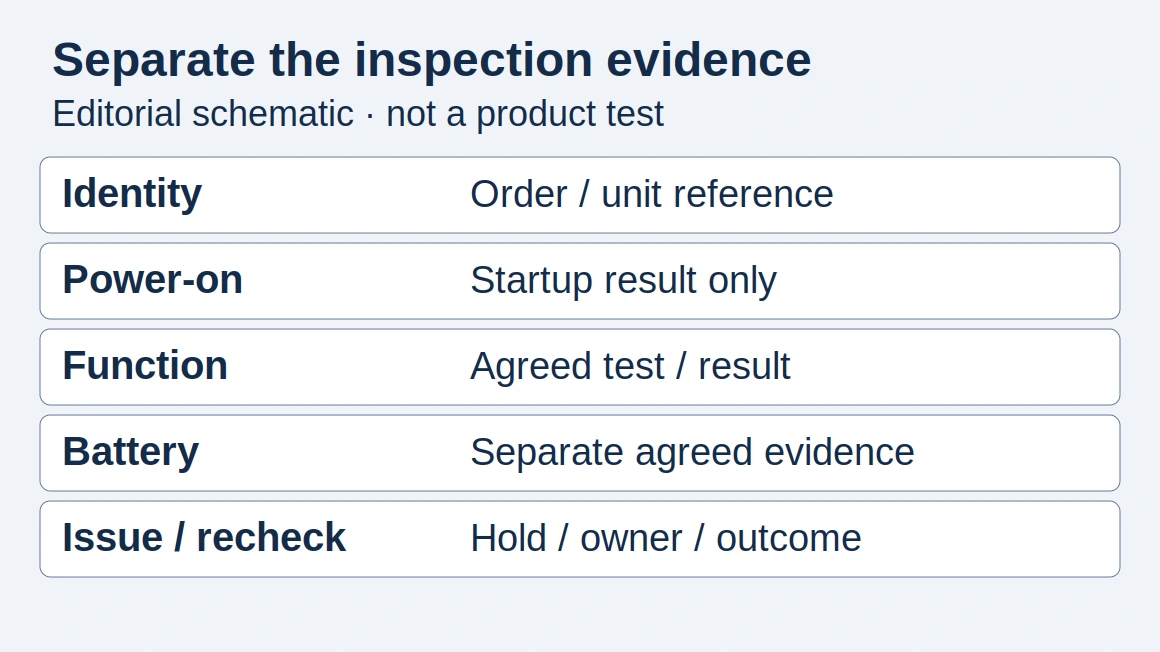
| After activation | Check the intended line, make a call if voice is included, and test cellular data with Wi-Fi off; check messages if included |
For Dual SIM, label the lines and choose the intended default voice and cellular data lines. Apple describes these controls in Using Dual SIM with an eSIM. A data-only travel plan should be checked against its data service, while a transferred voice line also needs call and message checks.
For a batch purchase, put the regional-model requirement and carrier verification into the acceptance record using the phone quality-control checklist. Retain the old phone and account access until the replacement delivers the services you need.
Sources and further reading
- Set up eSIM on iPhone — Apple Support 118669, October 22, 2026 — Apple. Accessed .
- Using Dual SIM with an eSIM — Apple Support 109317 — Apple. Accessed .
- Use eSIM while traveling internationally with your iPhone — Apple Support 118227, October 22, 2026 — Apple. Accessed .
- Using eSIM with your iPhone in China mainland — Apple Support 123879, September 9, 2026 — Apple. Accessed .
- eUICC Identity Scheme — GSMA. Accessed .
- Find the serial number, EID, or IMEI on your iPhone, iPad, or iPod touch — Apple Support 108037 — Apple. Accessed .
- Move your current Verizon mobile line to an eSIM device FAQs — Verizon. Accessed .
Found an error? See our corrections policy and research methodology.